Appendix A: Use Case Diagram
This appendix provides the Use Case Diagram and detailed descriptions of the actors and use cases for the Computer Vision & AI Lab Management System.
Use Case Diagram
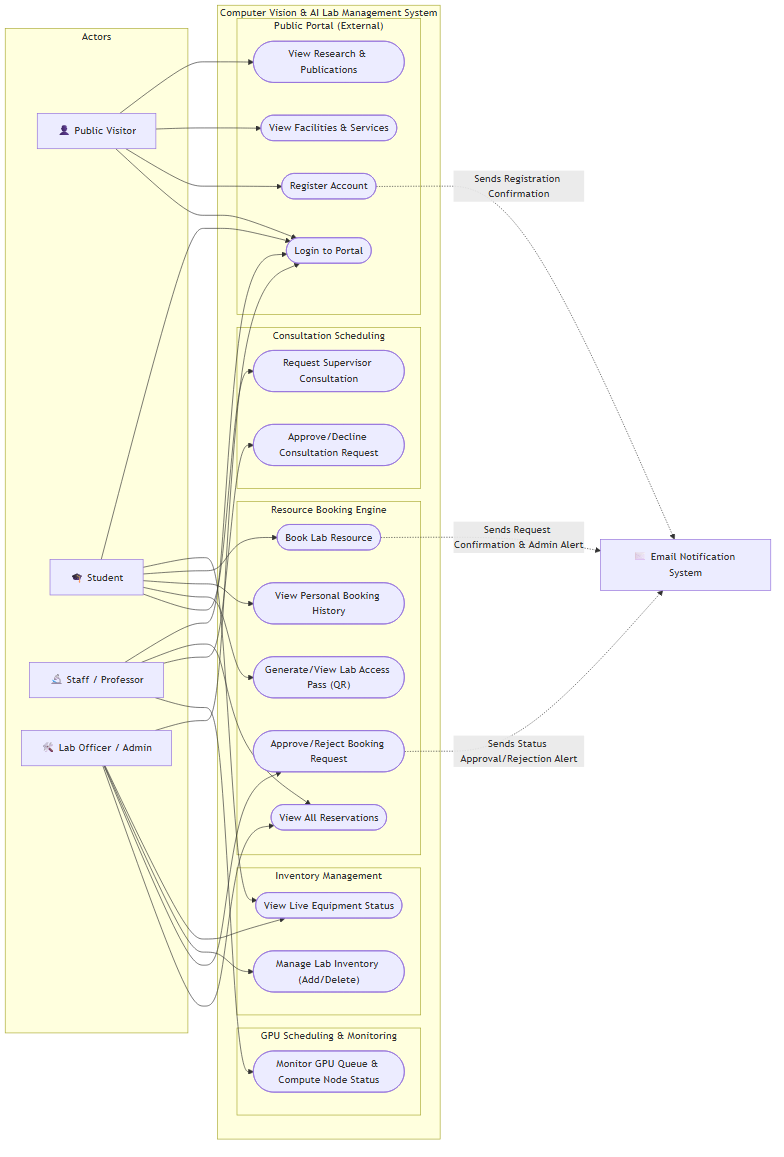
The following diagram outlines the interactions between the system’s actors and the key functional modules (Public Portal, Resource Booking Engine, GPU Scheduling, Inventory Management, and Academic Consultations).
Click to expand Mermaid Source Code</summary>
graph LR
    %% Actors
    subgraph Actors ["Actors"]
        Visitor["👤 Public Visitor"]
        Student["🎓 Student"]
        Staff["🔬 Staff / Professor"]
        Officer["🛠️ Lab Officer / Admin"]
    end

    %% System Boundary
    subgraph Lab_System ["Computer Vision & AI Lab Management System"]
        %% Public Portal Module
        subgraph Public_Portal ["Public Portal (External)"]
            UC1(["View Research & Publications"])
            UC2(["View Facilities & Services"])
            UC3(["Register Account"])
            UC4(["Login to Portal"])
        end

        %% Resource Booking Engine
        subgraph Booking_Engine ["Resource Booking Engine"]
            UC5(["Book Lab Resource"])
            UC6(["View Personal Booking History"])
            UC7(["Generate/View Lab Access Pass (QR)"])
            UC8(["Approve/Reject Booking Request"])
            UC9(["View All Reservations"])
        end

        %% Inventory Management Module
        subgraph Inventory_Mgmt ["Inventory Management"]
            UC10(["View Live Equipment Status"])
            UC11(["Manage Lab Inventory (Add/Delete)"])
        end

        %% Academic Consultations Module
        subgraph Consultations_Mgmt ["Consultation Scheduling"]
            UC12(["Request Supervisor Consultation"])
            UC13(["Approve/Decline Consultation Request"])
        end

        %% GPU Scheduling Module
        subgraph GPU_Mgmt ["GPU Scheduling & Monitoring"]
            UC14(["Monitor GPU Queue & Compute Node Status"])
        end
    end

    %% External Systems / Secondary Actors
    EmailSystem["✉️ Email Notification System"]

    %% Visitor Interactions
    Visitor --> UC1
    Visitor --> UC2
    Visitor --> UC3
    Visitor --> UC4

    %% Student Interactions
    Student --> UC4
    Student --> UC10
    Student --> UC5
    Student --> UC6
    Student --> UC7
    Student --> UC12

    %% Staff Interactions
    Staff --> UC4
    Staff --> UC9
    Staff --> UC13
    Staff --> UC14

    %% Officer / Admin Interactions
    Officer --> UC4
    Officer --> UC10
    Officer --> UC11
    Officer --> UC8
    Officer --> UC9

    %% System Boundary to External Systems
    UC3 -.->|Sends Registration Confirmation| EmailSystem
    UC5 -.->|Sends Request Confirmation & Admin Alert| EmailSystem
    UC8 -.->|Sends Status Approval/Rejection Alert| EmailSystem
</details>
System Actors
Actor
Type
Description
👤 Public Visitor
Primary
An unauthenticated external user browsing the public-facing pages of the laboratory website.
🎓 Student
Primary
A registered lab student (BSc, MPhil, or PhD candidate) who uses the system to book lab equipment, schedule GPU compute tasks, and request supervisor consultations.
🔬 Staff / Professor
Primary
A lab supervisor, researcher, or the Lab Director who reviews academic consultations, monitors running GPU jobs, and views bookings.
🛠️ Lab Officer / Admin
Primary
The system administrator or designated lab officer responsible for managing inventory (adding/deleting items) and approving or rejecting resource bookings.
✉️ Email Notification System
Secondary
An external mail service integrated with the backend API to dispatch transactional notification alerts (e.g., registration confirmation, reservation approval/rejection) to users.
Detailed Use Case Descriptions
1. Public Portal (External)
- View Research & Publications: Allows any visitor to browse research areas, active projects, publication listings, and news regarding lab activities.
- View Facilities & Services: Displays information about available lab facilities (e.g., computing cluster, motion capture rig, drone fleets) and support services.
- Register Account: Allows visitors to create a new profile (by default, registered accounts are assigned the
student role).
- Login to Portal: Authenticates registered users (Students, Staff, Officers) and redirects them to their respective role-based dashboard.
2. Resource Booking Engine
- Book Lab Resource: Allows students to submit reservation requests for specific equipment or time slots.
- View Personal Booking History: Lets students track the status and historical records of their booking requests.
- Generate/View Lab Access Pass (QR): Once a reservation is approved, a QR code access pass is generated for the student to scan at the lab entrance.
- Approve/Reject Booking Request: Grants Lab Officers/Admins authorization to evaluate and approve or deny pending bookings.
- View All Reservations: Allows Staff and Admins to inspect the complete registry of current and historic bookings.
3. Inventory Management
- View Live Equipment Status: Allows logged-in users to view available and active hardware items in real-time.
- Manage Lab Inventory (Add/Delete): Allows authorized Lab Officers to register new equipment items or remove decommissioned items from the system database.
4. Consultation Scheduling
- Request Supervisor Consultation: Allows students to schedule appointments with supervisors for CV methodology advice, publication reviews, or research guidance.
- Approve/Decline Consultation Request: Allows Staff members to manage their incoming appointment requests from students.
5. GPU Scheduling & Monitoring
- Monitor GPU Queue & Compute Node Status: Provides Staff and Students with a visual representation of active training jobs, active nodes (e.g., NVIDIA A100), and current utilization load statistics.
graph LR
%% Actors
subgraph Actors ["Actors"]
Visitor["👤 Public Visitor"]
Student["🎓 Student"]
Staff["🔬 Staff / Professor"]
Officer["🛠️ Lab Officer / Admin"]
end
%% System Boundary
subgraph Lab_System ["Computer Vision & AI Lab Management System"]
%% Public Portal Module
subgraph Public_Portal ["Public Portal (External)"]
UC1(["View Research & Publications"])
UC2(["View Facilities & Services"])
UC3(["Register Account"])
UC4(["Login to Portal"])
end
%% Resource Booking Engine
subgraph Booking_Engine ["Resource Booking Engine"]
UC5(["Book Lab Resource"])
UC6(["View Personal Booking History"])
UC7(["Generate/View Lab Access Pass (QR)"])
UC8(["Approve/Reject Booking Request"])
UC9(["View All Reservations"])
end
%% Inventory Management Module
subgraph Inventory_Mgmt ["Inventory Management"]
UC10(["View Live Equipment Status"])
UC11(["Manage Lab Inventory (Add/Delete)"])
end
%% Academic Consultations Module
subgraph Consultations_Mgmt ["Consultation Scheduling"]
UC12(["Request Supervisor Consultation"])
UC13(["Approve/Decline Consultation Request"])
end
%% GPU Scheduling Module
subgraph GPU_Mgmt ["GPU Scheduling & Monitoring"]
UC14(["Monitor GPU Queue & Compute Node Status"])
end
end
%% External Systems / Secondary Actors
EmailSystem["✉️ Email Notification System"]
%% Visitor Interactions
Visitor --> UC1
Visitor --> UC2
Visitor --> UC3
Visitor --> UC4
%% Student Interactions
Student --> UC4
Student --> UC10
Student --> UC5
Student --> UC6
Student --> UC7
Student --> UC12
%% Staff Interactions
Staff --> UC4
Staff --> UC9
Staff --> UC13
Staff --> UC14
%% Officer / Admin Interactions
Officer --> UC4
Officer --> UC10
Officer --> UC11
Officer --> UC8
Officer --> UC9
%% System Boundary to External Systems
UC3 -.->|Sends Registration Confirmation| EmailSystem
UC5 -.->|Sends Request Confirmation & Admin Alert| EmailSystem
UC8 -.->|Sends Status Approval/Rejection Alert| EmailSystem
student role).